How to Use WhatsApp Guest Calling to Call People Without an Account
WhatsApp now lets people without an account join your voice and video calls from a computer browser. Here's how to set it up, what guests can and can't do, and how it compares with Google Meet.
इस पोस्ट में11 sections
- How to use WhatsApp guest calling in five steps
- Who gets in, and what guests can see
- The limits: 32 people, a computer and a WhatsApp host
- WhatsApp vs Google Meet: no time limit, but fewer seats
- Google Calendar and Outlook plugins are coming later
- FAQ: WhatsApp guest calling in India and more
- Is WhatsApp guest calling available in India?
- Can I join a WhatsApp call without an account?
- Is it really free?
- Can guests see my phone number?
- What to do next
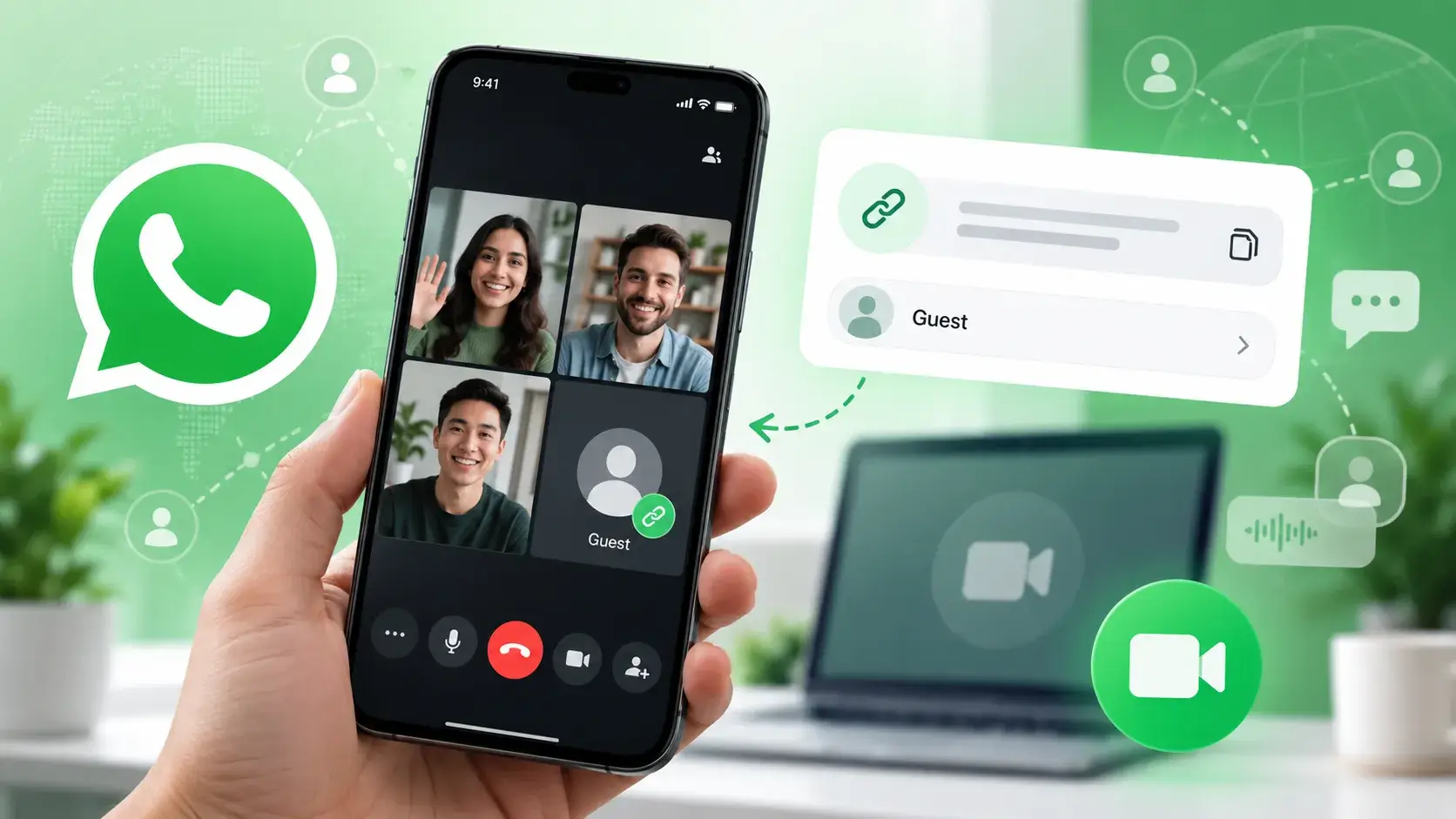
WhatsApp announced guest calling on 14 October 2026. You can now invite people who don't have WhatsApp to your voice and video calls. They open a link on a computer, type their name and wait for you to let them in. That's useful for calls with a client, your kid's tutor, or the one relative who won't install WhatsApp. You don't need Zoom or Google Meet for it.
According to WhatsApp's announcement, these calls are free, end-to-end encrypted (only the people on the call can see or hear it) and have no time limit. Here's how to set one up and what to know first.
How to use WhatsApp guest calling in five steps
The host needs a WhatsApp account. WhatsApp says only account holders can create a call link. Guests don't need anything except a computer and a browser.
- Open WhatsApp and go to the Calls tab.
- Tap the + icon and choose to create a call link.
- Share the link wherever you like: a WhatsApp chat, an SMS, an email or a calendar invite.
- Your guest opens the link in a computer browser, types their name and asks to join. They then sit in a waiting room.
- You get a request on your side. Approve it and the guest joins the call.
That's the whole process. Guests don't sign up, download anything or give a phone number.
Who gets in, and what guests can see
The privacy controls are simple, and the host makes every decision.
- Nobody gets in automatically. Every guest needs the host's approval from the waiting room, even if they have the link.
- You can remove guests at any time during the call.
- Phone numbers stay hidden. Guests can't see anyone's number.
- Guests can't message anyone, or add other people directly to the call.
- Calls are end-to-end encrypted, the same as normal WhatsApp calls.
Guests still get the basics. They can share their computer screen, react with a thumbs up or heart, and raise a hand when they want to speak.
One habit is worth building: treat the link like a house key. Anyone who has it can knock, even if they can't get in without your approval. Check names before you admit people, especially in big groups. If you want to tighten the rest of your accounts too, our 60-Minute Privacy & Security Reset walks you through it.
The limits: 32 people, a computer and a WhatsApp host
WhatsApp guest calling works for one-to-one calls and group calls of up to 32 people, including guests. It's built for family calls, small teams and tuition batches, not webinars.
- Maximum size: 32 participants per call.
- Guests: must join from a computer browser.
- Host: must have a WhatsApp account to create the link.
- Cost: free.
- Time limit: none, so long calls won't cut off and nobody has to rejoin.
WhatsApp vs Google Meet: no time limit, but fewer seats
Google Meet is the obvious comparison. Here's how WhatsApp compares with a free personal Google account, going by Google's own help page:
- Group size: Meet allows up to 100 participants. WhatsApp allows 32.
- Time limit: on a computer, free Meet calls with three or more people end after 60 minutes, with a warning at 50 minutes. WhatsApp guest calls have no time limit.
- Host account: Meet needs a Google account to create a meeting. WhatsApp needs a WhatsApp account.
- Browsers: Google names Chrome, Firefox, Edge and Safari. WhatsApp hasn't named any.
In short, use WhatsApp for long chats with a small group, especially when you already have everyone's contacts there. Meet is still better for big classes or meetings, and its paid Workspace plans add longer calls.
Google Calendar and Outlook plugins are coming later
WhatsApp says calendar integrations for Google Calendar and Outlook will arrive "later this year". You'll install a WhatsApp plugin, connect your account and add a WhatsApp call link straight to a meeting invite. People can join with or without WhatsApp. There's no exact date yet, so for now, paste the link into your invites by hand.
FAQ: WhatsApp guest calling in India and more
Is WhatsApp guest calling available in India?
WhatsApp hasn't published a country list or rollout schedule. The official announcement doesn't name any region where it's missing, and Indian outlets such as Digit have covered it. None of them confirm when it reaches Indian users, though. The easiest check is to update WhatsApp and look for the call link option under the + icon in the Calls tab.
Can I join a WhatsApp call without an account?
Yes. Open the link in a computer browser, enter your name and wait for the host to admit you.
Is it really free?
Yes. WhatsApp says guest calls are free with no time limit. Normal internet data charges still apply.
Can guests see my phone number?
No. Guests can't see other participants' phone numbers or send them messages.
What to do next
Update WhatsApp, open the Calls tab and make a test link. Then join it yourself from a laptop browser so you know what your guests will see. Watch for the Google Calendar and Outlook plugins later this year. That's when guest calling becomes easy to use for regular work meetings.
स्रोत
- WhatsApp Blog: Now You Can Invite Anyone to a WhatsApp Call: No Account Needed, No Cost, No Time Limit
- Meta Newsroom: Introducing WhatsApp Guest Calling
- Google Meet Help: Learn what requirements you need to use Google Meet
- GSMArena: WhatsApp's new Guest Calling feature lets you invite anyone to a call
- Digit: WhatsApp introduces Guest Calling, lets people join calls without an account
काम का लगा? इसे उस व्यक्ति को भेजें जिसे यह पढ़ना चाहिए।